Introduction
Email is the lifeblood of modern work. It is also one of the biggest drains on productivity. The average professional spends 28% of their workweek reading and writing emails—more than 11 hours per week. For managers and executives, that number climbs even higher.
But what if you could cut that time in half? What if you could draft a professional email in seconds, polish it in moments, and get back to the work that actually matters?
Artificial intelligence makes this possible. AI email assistants can draft, summarize, refine, and even send emails on your behalf. They do not replace your judgment—they handle the mechanics, so you can focus on the message.
This article is a practical guide to using AI to write emails faster. We will cover which tools to use, how to prompt effectively, workflows for different types of emails, and best practices for maintaining authenticity and professionalism. Whether you are drowning in your inbox or just want to reclaim a few hours each week, this guide will help.
For a foundational understanding of how to instruct AI systems effectively, you may find our guide on Prompt Engineering Basics for Beginners helpful as a starting point.
Throughout, we will highlight how MHTECHIN helps professionals and organizations build AI-powered workflows that save time and improve communication.
Section 1: Why Use AI for Email?
1.1 The Email Problem
Email consumes more time than most professionals realize. Beyond the raw hours, email creates cognitive overhead: context switching, decision fatigue, and the constant pressure of an overflowing inbox.
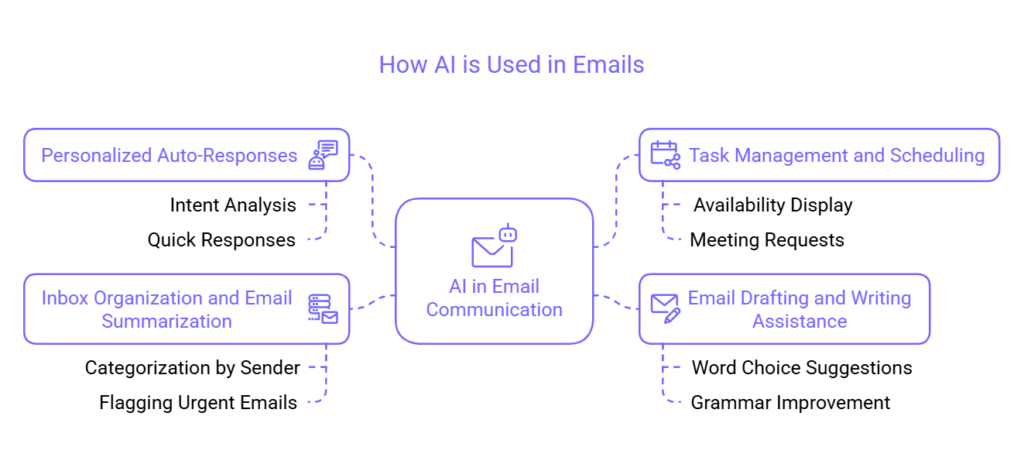
AI does not eliminate email. But it can dramatically reduce the time spent on:
- Drafting. Starting from a blank page is the hardest part. AI gives you a first draft.
- Polishing. Grammar, tone, and clarity—AI catches what you might miss.
- Summarizing. Long email chains become concise summaries.
- Replying. Common questions get instant, personalized responses.
1.2 What AI Email Tools Can Do
| Capability | What It Does | Time Saved |
|---|---|---|
| Draft from bullet points | Convert rough notes to polished email | 80–90% on first draft |
| Rephrase and polish | Improve clarity, grammar, tone | 50–70% on editing |
| Summarize threads | Condense long chains to key points | 70–90% on reading |
| Suggest replies | Generate contextual responses | 50–80% on simple emails |
| Adjust tone | Make formal, friendly, concise, or detailed | 30–50% on refinement |
| Translate | Convert to other languages | 90%+ on translation |
1.3 AI Does Not Replace You
The goal of AI email tools is not to automate your voice out of existence. It is to handle the mechanics—grammar, structure, phrasing—so you can focus on what matters: your message, your judgment, your personal touch.
The best AI email workflows are human-in-the-loop. You prompt, you review, you refine. The AI works for you, not instead of you.
Section 2: AI Tools for Email
2.1 Integrated Email Assistants
Gemini in Gmail (Google).
Gemini is built directly into Gmail. It can draft emails, suggest replies, and summarize threads—all within your inbox. Available with Google Workspace (business) or Gemini Advanced subscription.
- Draft. Click “Help me write” and enter a prompt. Gemini generates a draft.
- Polish. Highlight text and choose “Polish” to improve tone and clarity.
- Summarize. At the top of long threads, click “Summarize this email.”
- Suggested replies. Smart replies offer quick responses.
Getting started. Works with any Gmail account; advanced features require subscription.
Microsoft Copilot in Outlook.
Copilot is integrated into Outlook for Microsoft 365 subscribers. It offers similar capabilities: drafting, summarizing, and coaching.
- Draft. Start a new email, click “Copilot,” enter your prompt.
- Summarize. Copilot can summarize long email threads with key points.
- Coaching. Get suggestions for tone, clarity, and effectiveness.
Getting started. Requires Microsoft 365 Copilot subscription.
2.2 Standalone AI Assistants
ChatGPT, Claude, Gemini (web/mobile).
These general-purpose AI tools are excellent for email drafting. You paste your prompt, get a draft, copy it into your email client.
Advantages. More flexibility than integrated tools. You can craft detailed prompts, upload attachments, and iterate easily.
Disadvantages. Requires copy-pasting between tools.
Best for. Complex emails, long drafts, or when you want full control over the prompting process.
2.3 Browser Extensions
Grammarly. Beyond grammar checking, Grammarly offers generative AI for drafting and rewriting. The browser extension works in Gmail, Outlook, and other webmail clients.
Others. Extensions like Mailbutler, Mixmax, and others offer AI drafting, scheduling, and tracking features.
Section 3: How to Prompt for Email
3.1 The Anatomy of a Good Email Prompt
A good email prompt includes four elements:
- Context. Who is this for? What is the situation?
- Purpose. What do you want to achieve?
- Key points. What needs to be included?
- Tone. Formal, friendly, concise, detailed?
Example prompt:
Draft a follow-up email to a client named Sarah after our meeting yesterday. We discussed the Q3 marketing plan. I promised to share the timeline and a few campaign ideas. Keep it friendly and professional. Mention that I am attaching the timeline (I will attach it separately). End with a question about her availability for a quick call next week.
3.2 Prompt Templates by Email Type
Cold outreach / introduction.
Draft a cold email to [person] at [company]. Introduce myself as [role] at [your company]. Mention that I came across their work on [specific project]. Suggest a 15-minute call to explore potential collaboration. Keep it brief and friendly.
Follow-up after meeting.
Draft a follow-up to [name] after our meeting [date]. Thank them for their time. Summarize the key points we discussed: [point 1], [point 2]. Mention the next step we agreed on: [next step]. Attach [document] as promised. Keep it professional but warm.
Internal update / team email.
Draft a team email to the marketing department. Subject: Q4 campaign update. Key points: [point 1], [point 2], [point 3]. We are on track. Next steps: [next steps]. Ask if anyone has questions. Keep it concise and upbeat.
Customer service / support.
Draft a response to a customer who emailed about [issue]. Apologize for the inconvenience. Explain that we are looking into it. Estimate a response time of [time]. Reassure them that we will follow up. Keep it empathetic and professional.
Request / action needed.
Draft an email to [department] requesting [action]. Explain why it is needed: [reason]. Provide deadline: [date]. Ask them to confirm receipt. Keep it clear and direct.
Declining / saying no.
Draft an email to [name] declining their [request/proposal]. Start with appreciation for their effort. Explain briefly why it is not possible. Suggest alternative if applicable. Keep it respectful and kind.
3.3 Iterating on Drafts
The first draft is rarely perfect. Use the AI to refine:
- Shorten. “Make this more concise. Cut the length by half.”
- Formalize. “Make the tone more formal and professional.”
- Friendly. “Make this sound warmer and more conversational.”
- Add detail. “Add a sentence explaining why this deadline is important.”
- Translate. “Translate this to Spanish.”
Section 4: Workflows for Different Email Scenarios
4.1 The Quick Reply Workflow
For emails that require a short, straightforward response:
- Read the email.
- Click the AI “suggest reply” button (if available) or paste into ChatGPT with: “Draft a brief, friendly reply to this email: [paste email].”
- Review and tweak.
- Send.
Time saved. 80–90% compared to drafting from scratch.
4.2 The Thoughtful Response Workflow
For emails that require nuance, detail, or a personal touch:
- Read the email. Jot down key points you want to address.
- Open your AI tool. Prompt: “Draft a response to this email. Address these points: [list]. Keep it professional but warm. [paste email].”
- Review the draft. Add personal details, tweak phrasing.
- Send.
Time saved. 50–70% compared to drafting from scratch.
4.3 The Blank Page Workflow
When you are not sure what to say or how to start:
- Open your AI tool.
- Prompt with context, purpose, and key points—even if they are rough.
- Get a draft. Read it. Does it capture what you want? If not, refine the prompt.
- Use the draft as a starting point. Add your voice.
- Send.
Time saved. Eliminates staring at a blank screen.
4.4 The Long Thread Workflow
For long email chains you need to catch up on:
- Ask your AI tool: “Summarize this email thread. Key decisions, open questions, next steps. [paste thread].”
- Read the summary.
- If needed, reply based on the summary.
Time saved. 70–90% compared to reading every message in detail.
4.5 The Batch Workflow
For professionals who handle many similar emails:
- Create prompt templates for common scenarios (meeting follow-ups, status updates, etc.).
- For each email, fill in the variables (name, date, details) and paste into AI.
- Generate, review, send.
Time saved. Consistent quality, faster throughput.
Section 5: Maintaining Authenticity and Professionalism
5.1 Always Review Before Sending
AI drafts are starting points, not final products. Always review:
- Accuracy. Does it say what you intended?
- Tone. Does it sound like you?
- Details. Are names, dates, and specifics correct?
- Context. Does it address the recipient appropriately?
Never send an AI-generated email without reading it first.
5.2 Add Your Voice
AI drafts can sound generic. Add personal touches:
- Acknowledge something specific from the recipient’s email.
- Mention a previous conversation.
- Use your natural phrasing and vocabulary.
- Add a personal closing.
5.3 Check for Hallucinations
AI can invent details—dates, names, facts—that sound plausible but are wrong. Verify:
- Names are spelled correctly.
- Dates and times are accurate.
- Facts and references are real.
See our guide on AI Hallucinations for more on detecting and preventing fabricated information.
5.4 Avoid Over-Automation
AI is powerful, but people can tell when an email feels automated. For important relationships, ensure your emails still sound human. Use AI for the structure and polish, but keep your voice.
Section 6: Privacy and Security Considerations
6.1 What Happens to Your Data?
When using AI tools for email, understand:
- Integrated tools (Gemini in Gmail, Copilot in Outlook). Data is processed within the platform. Check your organization’s policies.
- Consumer AI tools (ChatGPT, Claude, etc.). Data you input may be used for training (unless you opt out). Do not paste sensitive or confidential information.
- Enterprise versions. Many tools offer business tiers with data protection guarantees.
6.2 Best Practices
- Use enterprise tools for business email. If your organization offers Gemini for Workspace or Copilot for Microsoft 365, use those for work emails.
- Redact sensitive information. If using consumer tools, remove names, financial details, and proprietary information before pasting.
- Check your organization’s policy. Many companies have policies on AI use. Follow them.
Section 7: Putting It All Together—A Step-by-Step Example
Let us walk through a practical example.
Scenario. You had a call with a potential client, Maria Chen, about a consulting project. You need to follow up with a proposal summary and next steps.
Step 1: Jot down key points.
- Thank you for the call
- Discussed: project scope, timeline (8 weeks), budget range ($20–25K)
- I will send a formal proposal by Friday
- Questions about team composition? Let me know
Step 2: Prompt the AI.
Draft a follow-up email to Maria Chen after our consulting call today. Thank her for her time. Mention that we discussed a project scope of 8 weeks in the $20–25K range. I will send a formal proposal by Friday. Ask if she has any questions about team composition. Keep it professional but warm.
Step 3: Review and refine.
The AI generates a draft. You read it. It captures the key points but feels a bit formal. You add: “I really enjoyed our conversation” and change “please let me know” to “just let me know.”
Step 4: Send.
You send the polished email.
Time spent. 2 minutes. Without AI, this would have taken 8–10 minutes.
Section 8: How MHTECHIN Helps with AI Email Workflows
AI email tools are powerful, but using them effectively requires the right skills and workflows. MHTECHIN helps professionals and organizations build AI-powered email practices that save time and improve communication.
8.1 For Individuals
MHTECHIN offers:
- Tool selection. Which AI email tools fit your needs and environment?
- Prompt engineering. How to craft effective prompts for email.
- Workflow design. Integrate AI into your email routine.
- Best practices. Maintain authenticity, professionalism, and security.
8.2 For Teams and Organizations
MHTECHIN helps organizations:
- Evaluate tools. Assess integrated options (Google Workspace, Microsoft 365) vs. standalone.
- Establish policies. Guidelines for AI email use, data privacy, and security.
- Train teams. Workshops on effective AI email workflows.
- Measure impact. Track time savings and communication quality.
8.3 The MHTECHIN Approach
MHTECHIN’s approach is practical: start with the emails that consume the most time, choose the right tools, and build workflows that work for you. The goal is not to automate your voice away—it is to handle the mechanics so you can focus on the message.
Section 9: Frequently Asked Questions
9.1 Q: What is the best AI tool for writing emails?
A: It depends on your environment. If you use Gmail, Gemini in Gmail is seamless. If you use Outlook, Microsoft Copilot integrates well. For maximum flexibility, ChatGPT, Claude, or Gemini (web) are excellent. Grammarly is great for polishing.
9.2 Q: Can AI write emails for me automatically?
A: AI can draft emails based on your prompts. It can also suggest replies to simple emails. For fully automated sending based on rules, tools exist, but most professionals use AI for drafting and reviewing, not fully automated sending.
9.3 Q: How do I get AI to write in my voice?
A: Provide examples. In your prompt, say “Write in a friendly, conversational tone like this: [paste a sample of your writing].” Over time, the AI learns your style. You can also refine drafts to sound more like you.
9.4 Q: Is it safe to use AI for work emails?
A: If you use integrated tools (Gemini in Gmail, Copilot in Outlook) with enterprise accounts, data stays within your organization. If you use consumer AI tools, avoid pasting sensitive information. Always check your organization’s AI policy.
9.5 Q: How much time can AI save on email?
A: Studies suggest AI can cut email drafting time by 50–80% depending on the email type. For simple replies, it can be even faster. Over a week, this can save several hours.
9.6 Q: Will AI make my emails sound generic?
A: Only if you let it. Use AI for the structure, grammar, and first draft. Then add your personal touches—specific references, your natural phrasing, a personal closing. The best AI email workflows are human-in-the-loop.
9.7 Q: Can AI summarize long email threads?
A: Yes. Gemini in Gmail, Copilot in Outlook, and standalone tools like ChatGPT can summarize long threads. This is one of the biggest time-savers for professionals with heavy inboxes.
9.8 Q: How do I prompt AI to write a polite but firm email?
A: Specify the tone in your prompt. Example: “Draft a polite but firm email reminding the team about the deadline. Emphasize that extensions are not available. Keep it professional but direct.”
9.9 Q: Do I need to be a good writer to use AI for email?
A: No. AI is especially helpful for people who find writing challenging. You provide the ideas and context; AI handles the structure and phrasing. You still need to review for accuracy and tone.
9.10 Q: How does MHTECHIN help with AI email workflows?
A: MHTECHIN helps individuals and organizations select the right tools, craft effective prompts, design workflows, and establish policies for AI email use. We provide training and support to ensure AI email tools deliver real productivity gains.
Section 10: Conclusion—Reclaim Your Inbox
Email does not have to consume your day. With AI, you can handle the mechanics of drafting, polishing, and summarizing in a fraction of the time. You get back hours each week—time you can spend on work that matters, on relationships, or simply on reclaiming your focus.
The key is to use AI as a tool, not a crutch. Prompt it well. Review every draft. Add your voice. Respect privacy and security. And iterate until the workflow feels natural.
Start small. Pick one type of email that takes you too long. Use AI to draft it faster. See how it feels. Then expand.
In 2026, the most productive professionals are not those who write the most emails. They are those who use AI to handle the mechanics—so they can focus on the message.
Ready to reclaim your inbox? Explore MHTECHIN’s AI productivity training at www.mhtechin.com. From tool selection to advanced workflows, our team helps you work smarter with AI.
This guide is brought to you by MHTECHIN—helping professionals and organizations build AI-powered workflows that save time and improve communication. For personalized guidance on AI email strategies, reach out to the MHTECHIN team today.

Leave a Reply